Help Center
Uninstalling NT8 add-ons
Uninstalling the MTPredictor add-ons is a 2 step process.
- First uninstall our MTPredictor add-ons from your PC.
- Then you need to de register our MTPredictor licencing on your PC (you can skip this step if you alraedy have build 8.6.0.0 or later installed).
Step 1 – Uninstall the MTPredictor Add-ons
First, please close NinjaTrader 8.
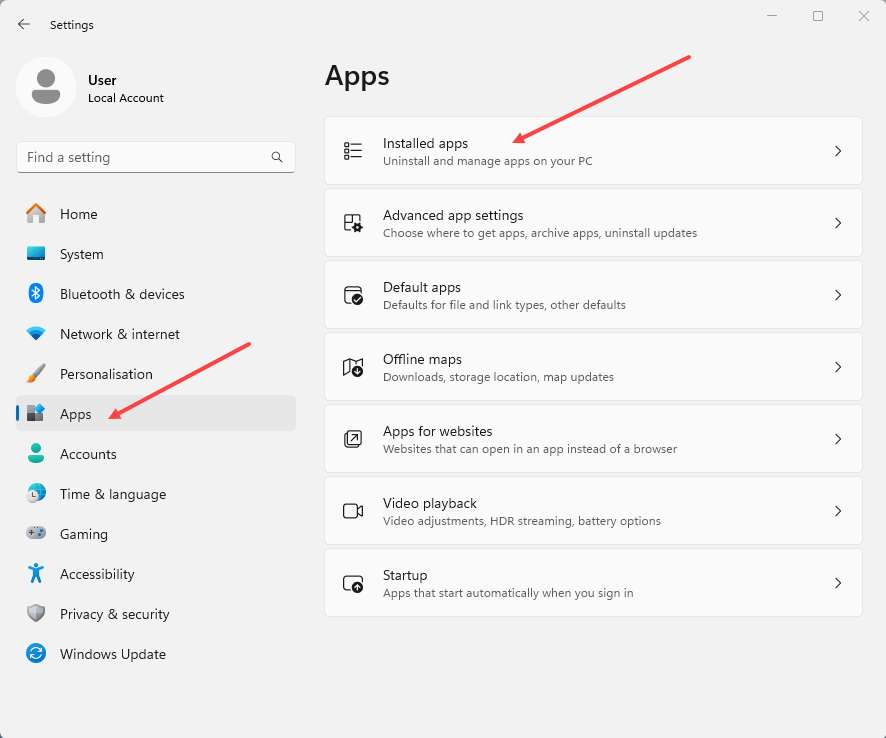
Then go to your Settings on your PC, then Select “Apps”, then “Installed Apps”:
Then Search for “MTP”, then select the MTPredictor add-ons for NinjaTrader 8 using the three dots on the right hand side (…). Then choose “Uninstall”:
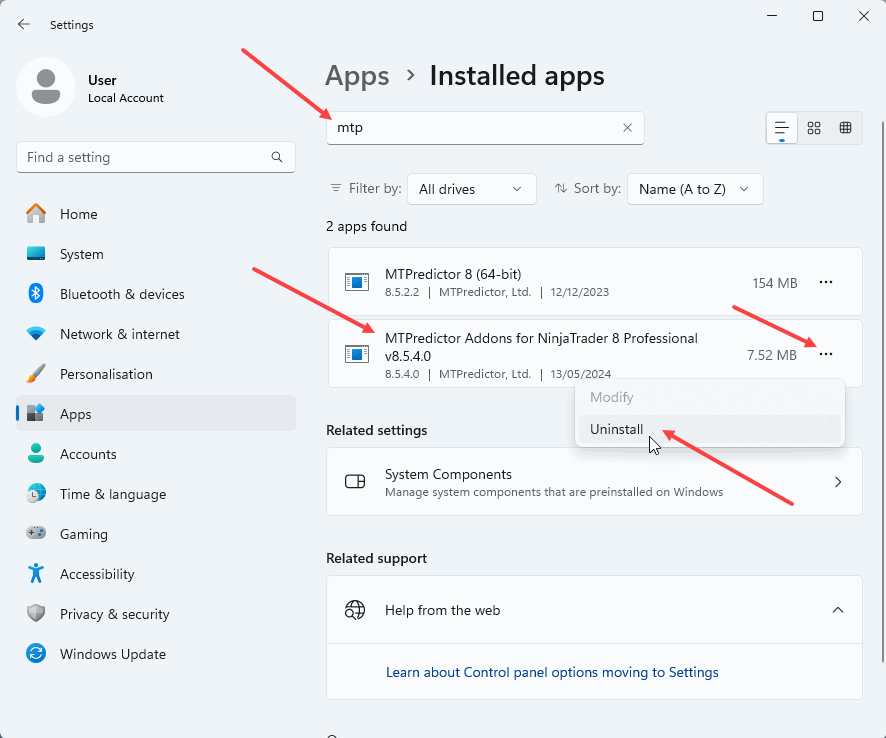
Then click on Uninstall.
That should be it, you have now uninstalled the MTPredictor add-ons from NinjaTrader 8 on your PC.
Step 2 – De-register our MTPredictor licencing
(you can skip this step if you alraedy have build 8.6.0.0 or later installed)
On your PC please close NinjaTrader 8, then please download the Batch File below by clicking on the following link:
Windows may put up a warning message, because this is a Batch file, something like:

This is OK, just click on “Keep”.
Now navigate on your PC to where you downloaded the file (this is usually your “Downloads” Folder), then “Right Mouse Click over the file and choose “Run as Administrator”, please see:
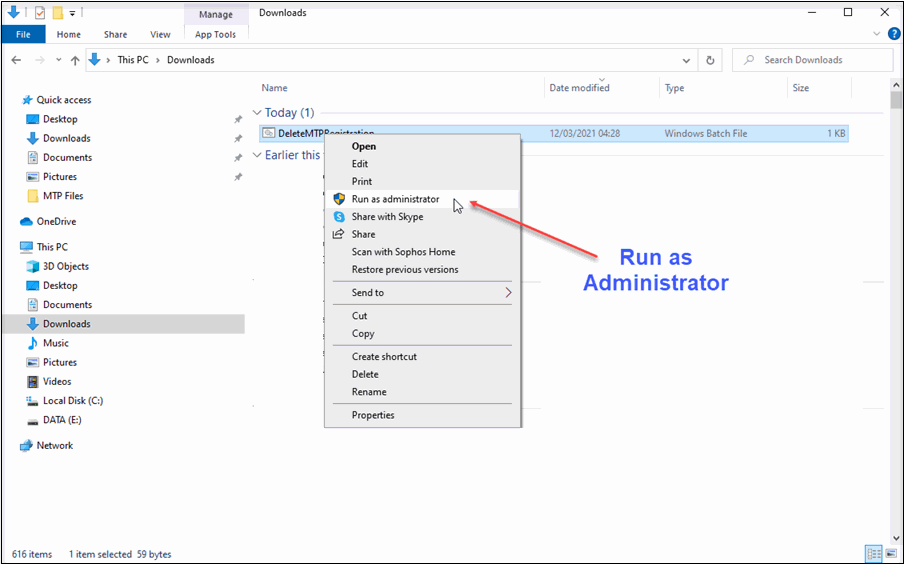
Wait until the program has finished. There is no indication that the program has run, just wait 30 seconds, that is all it should take.
Note:
Please remember that although MTPredictor has automatic setups, we do not suggest that you just follow these blindly as if it were a black box mechanical system, judgement is needed in filtering the automatic setups, particularly with respect a clear larger degree trend. Each Trader must take responsibility for deciding on whether their own Analysis is clear and fits in with their own (personal and unique) Trading Plan.